Measurement And Calibration
XCP configuration
1.Add ECU
Click XCP module->Configuration-> right-click Devices-> click Add ecu, as shown in the figure:
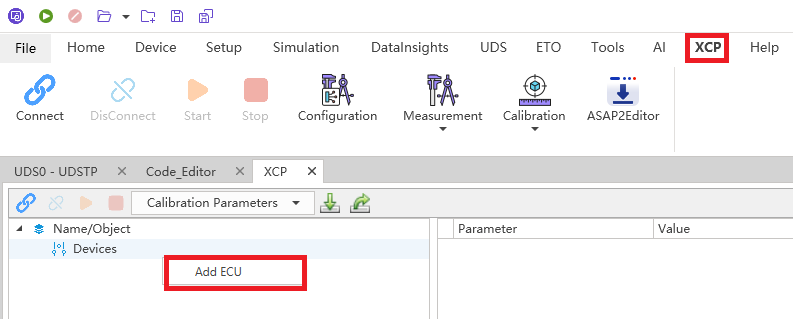
Enter the ECU name, as shown in the picture:

2. Import the A2L file
Click Import, as shown in the picture:

After the import is successful, the file name is displayed, as shown in the figure:

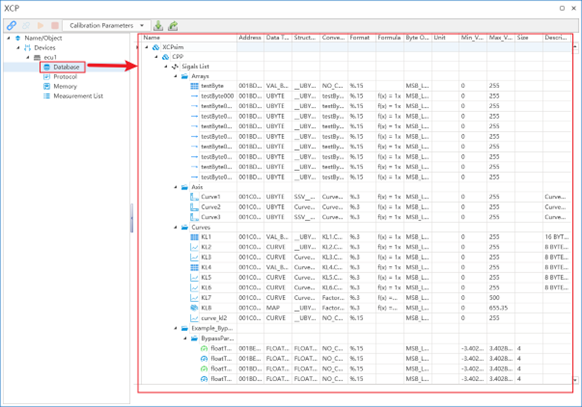
At the same time, the database displays the observation and calibration quantification, as shown in the figure:
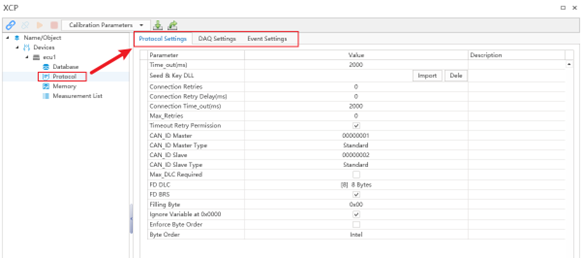
3. Configure the Protocol、DAQ、Event
Connect the ECU
After the configuration is completed, click Connect to connect the ECU, as shown in the figure:
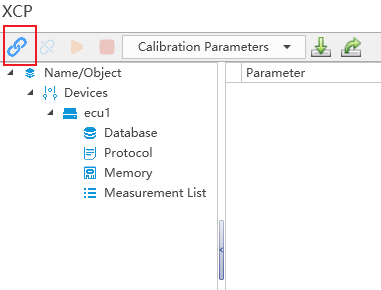
After the connection is successful, as shown in the figure:

Measurement
-
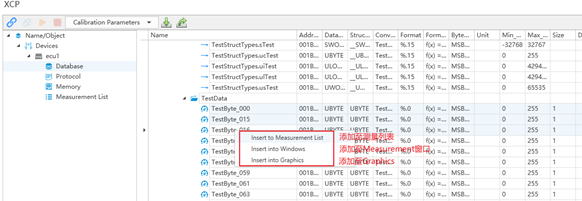
Add observations Select the observation (multiple selections) and right-click to add the observation to the measurement list, Measurement window (you need to create a new Measurement window in advance, by clicking Measurement in the menu bar), Graphics, as shown in the figure:
-
elect the measurement mode
Choice of polling or DAQ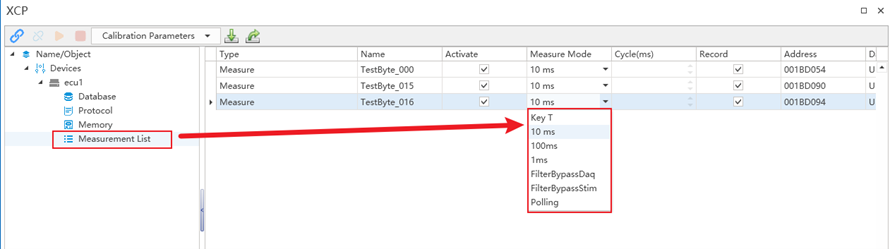
-
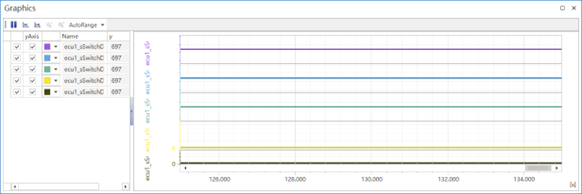
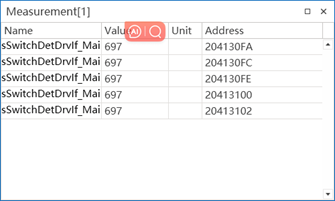
Monitor the value of the observation Add the observation to the graphics or measurement window, as shown in the figure:
Demarcate
-
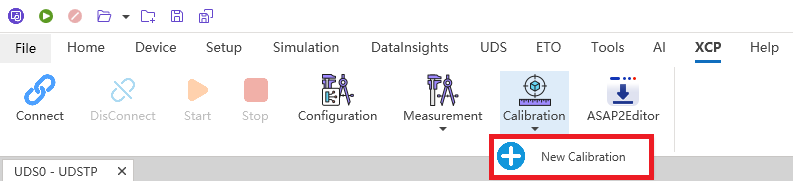
Create a new Calibration window, as shown in the figure:
-
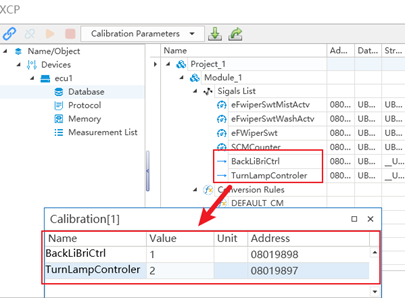
Drag and drop the calibration to the Calibration window, as shown in the figure:
-
Modify the value of the calibration quantitative, as shown in the figure:

Configuration Import and xport
-
You can export the contents of XCP Configuration, as shown in the figure:
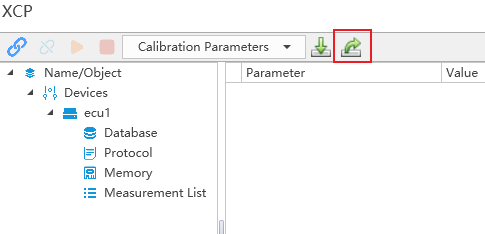
-
You can export the contents of XCP Configuration, as shown in the figure:
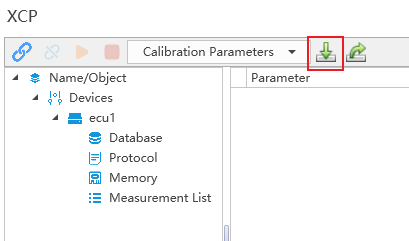
Quantitative import and export
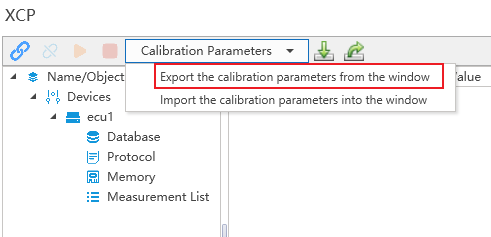
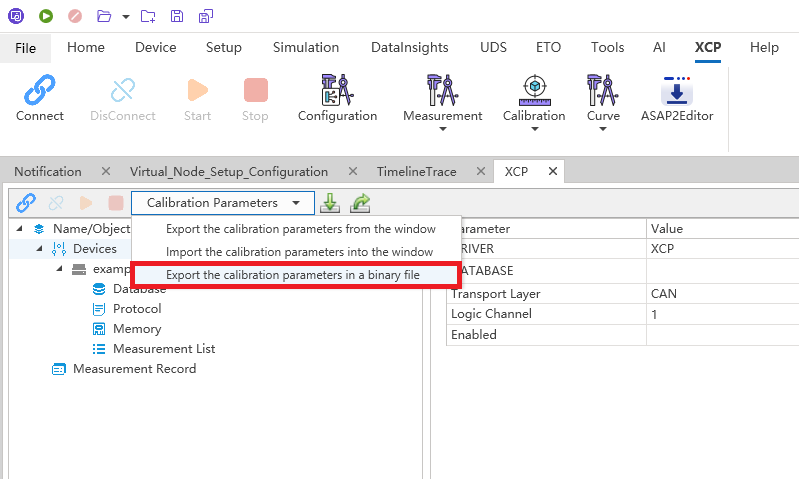
- The contents of all calibration windows can be exported, as shown in the figure:
Import the contents of all calibration windows, as shown in the figure: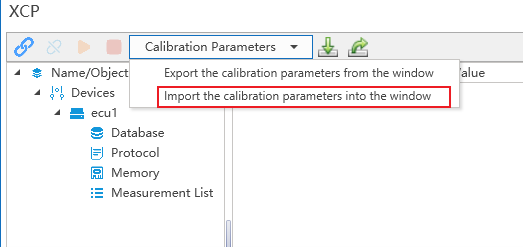
Data playback
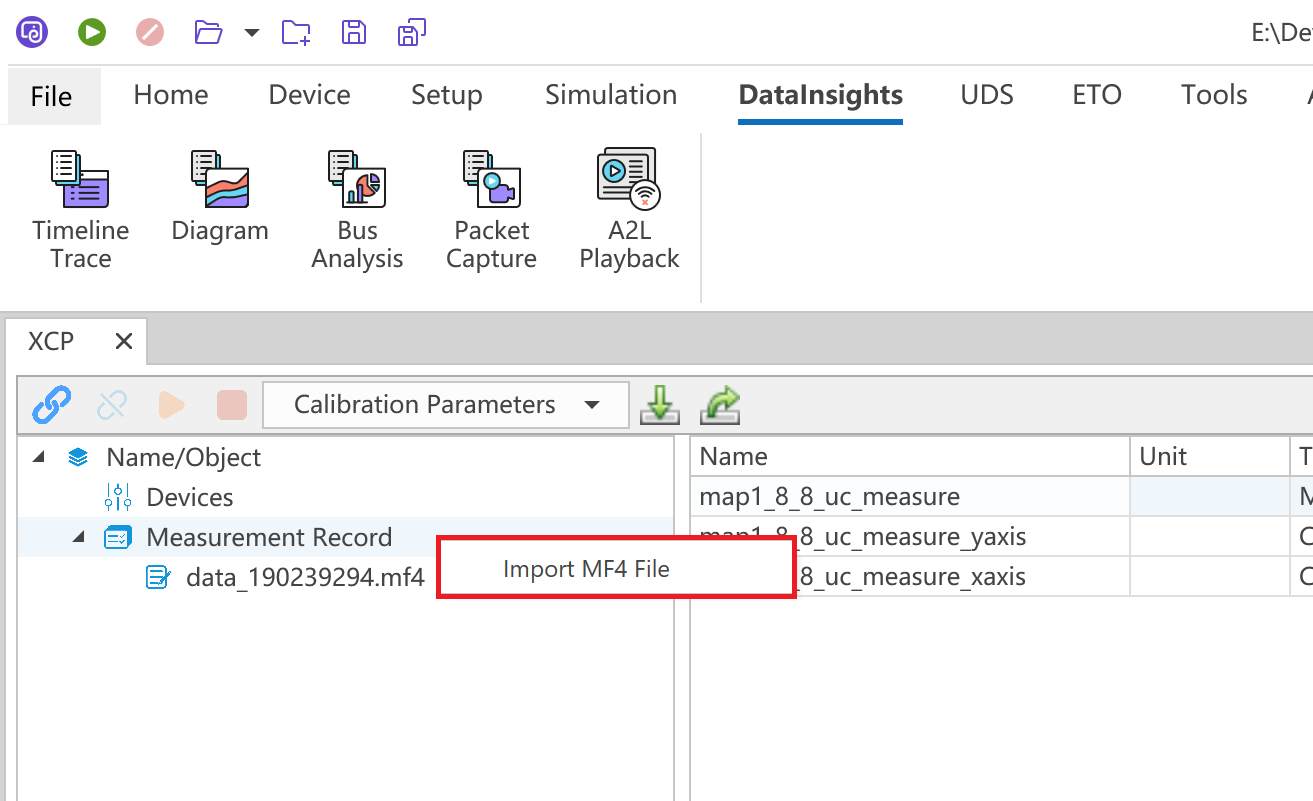
In XCP, select Configuration and import the MF4 file
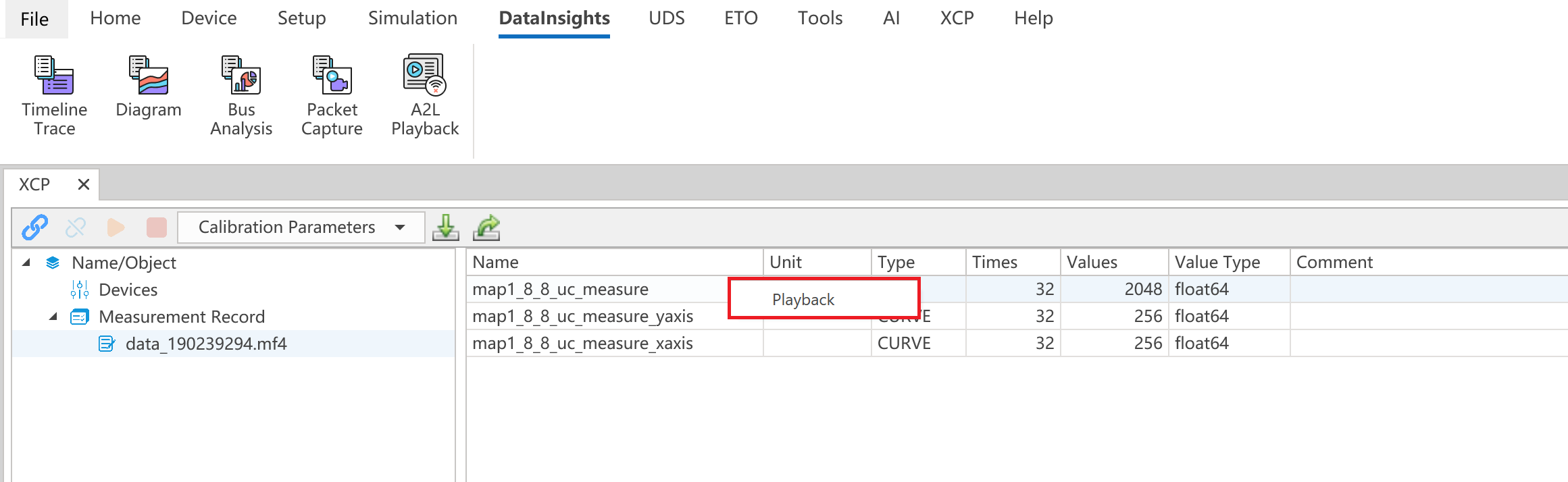
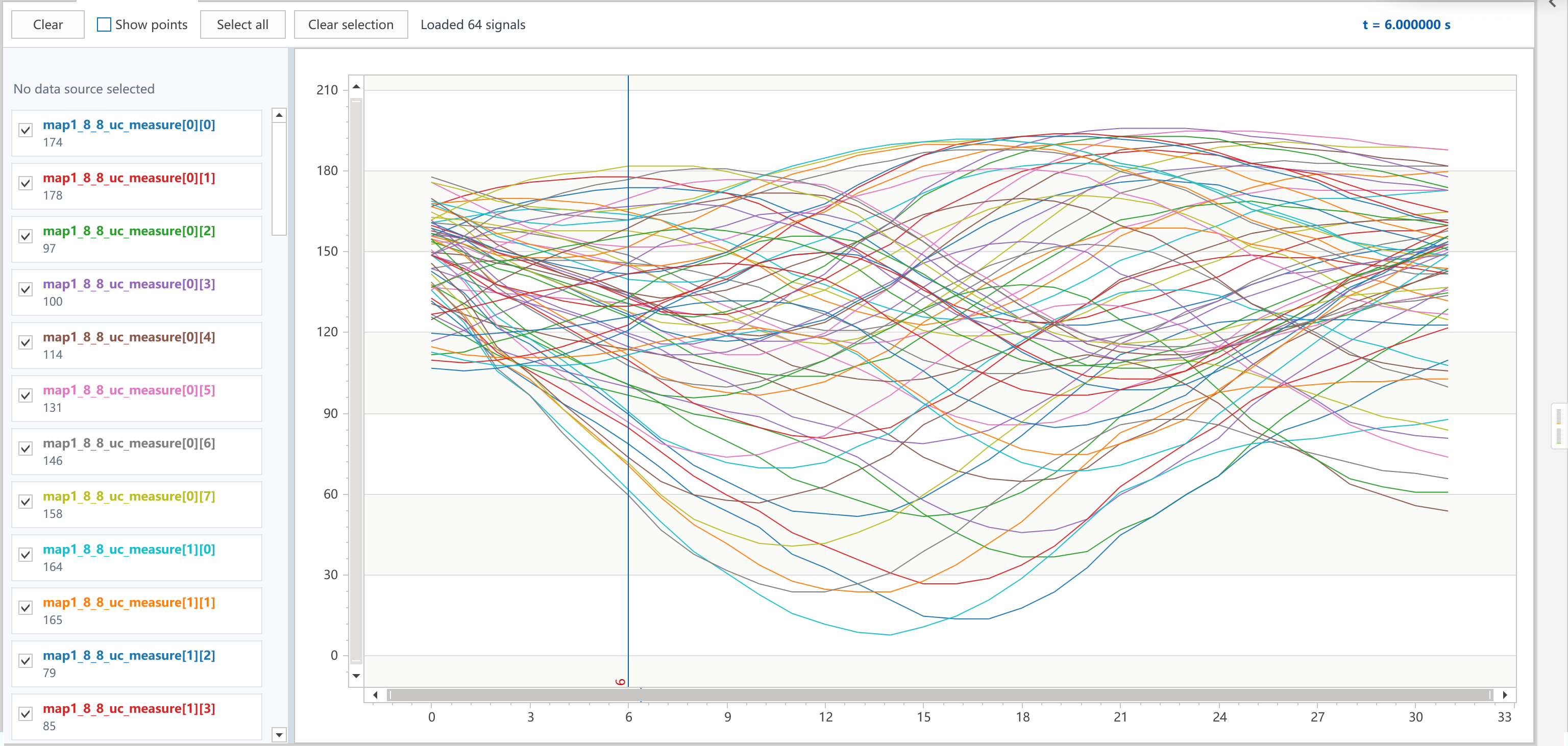
Right-click on the "play back" signal to observe the data.
Merging Calibration Data with the Original HEX File and Exporting
Under XCP → Devices, add an ECU. In the ECU's Memory, you can import the original HEX file.
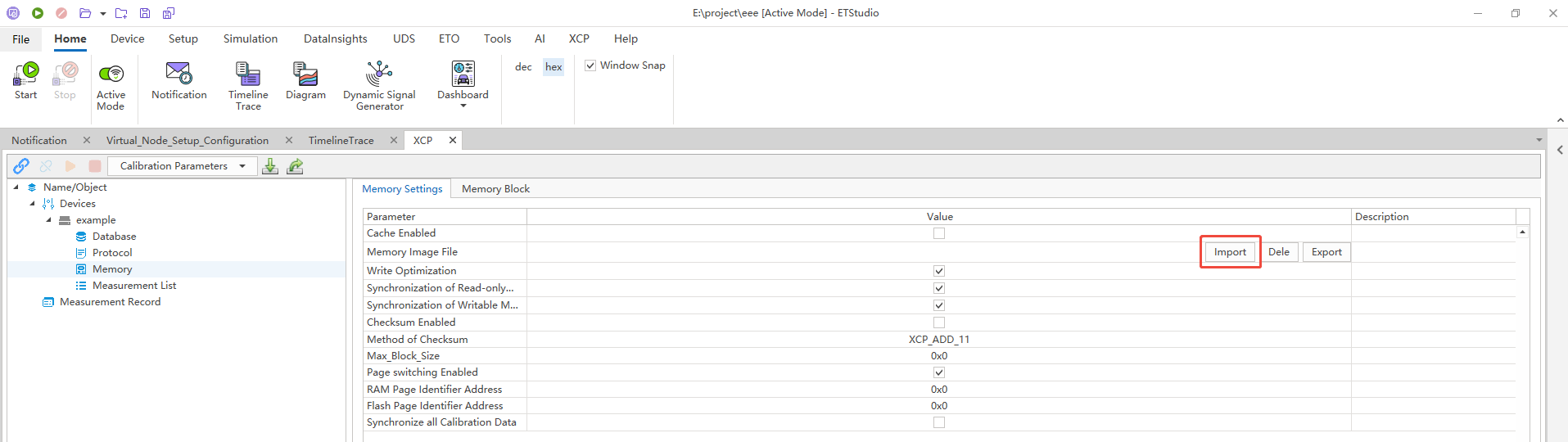
After clicking Connect and completing calibration, the merged file can be exported at the location shown in the figure below.
Map Data Calibration
Import the A2L file into the added ECU.

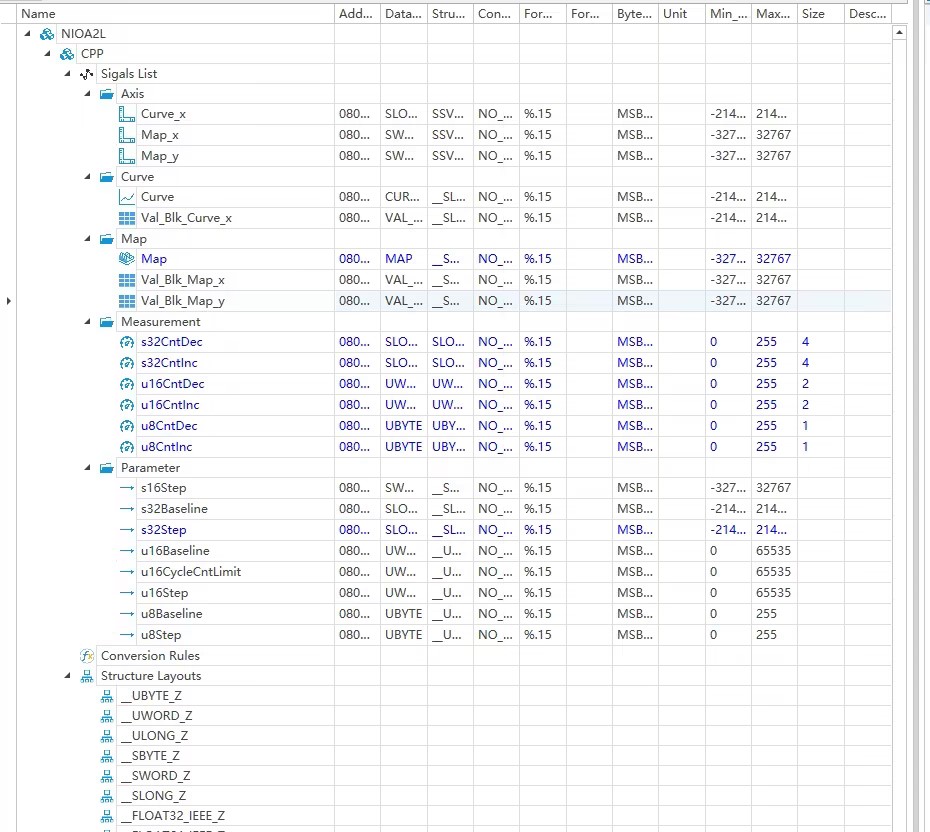
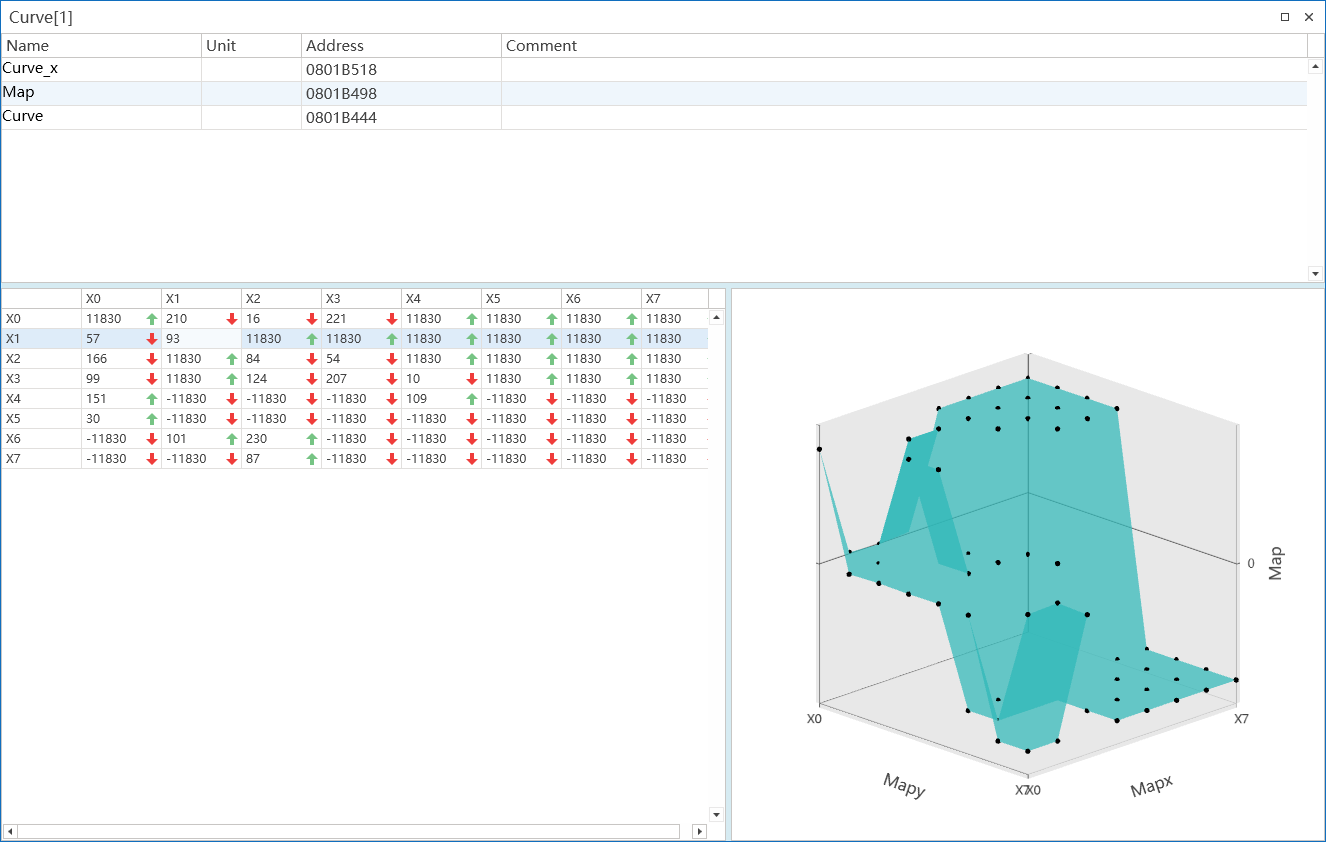
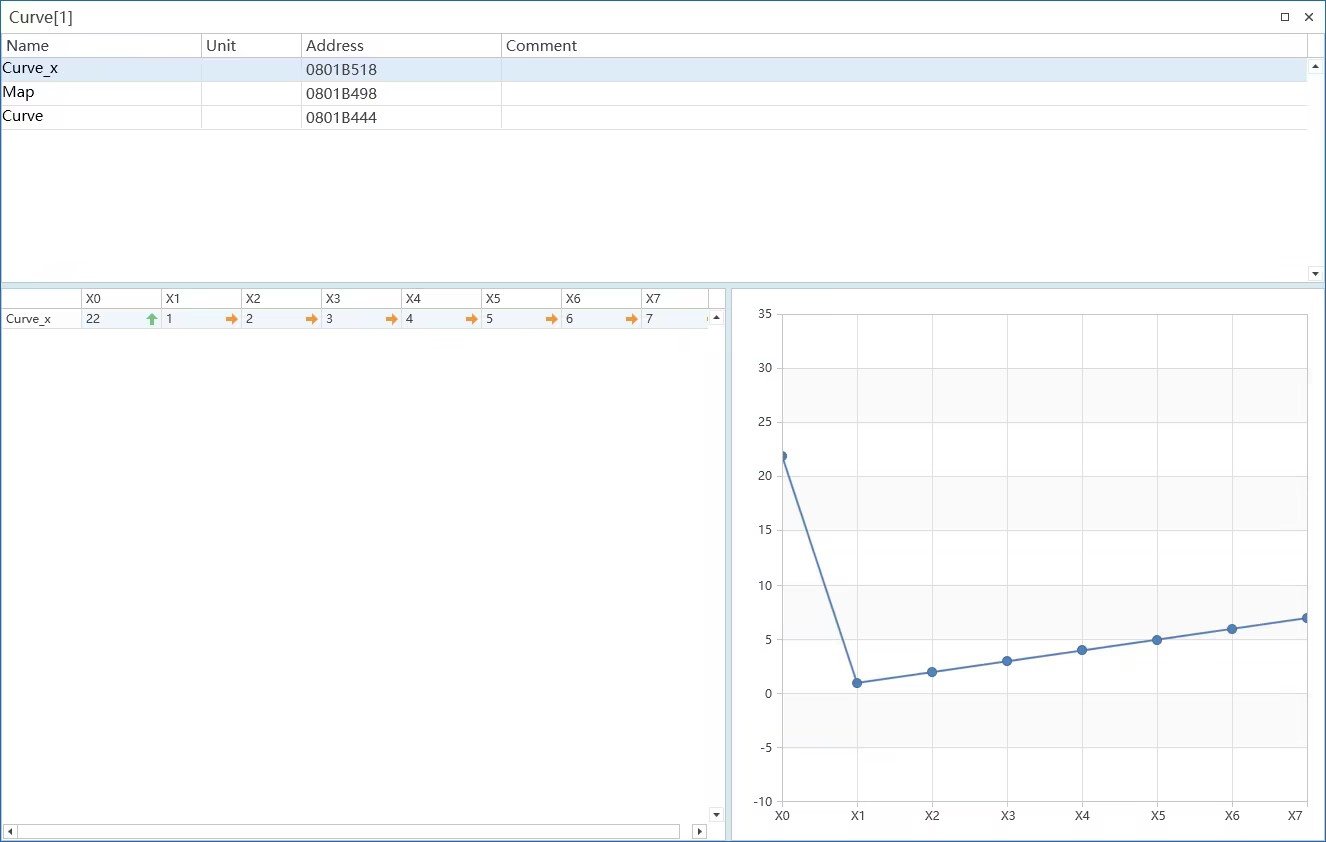
The data in Map from the figure above can be dragged into Curve in the figure below.
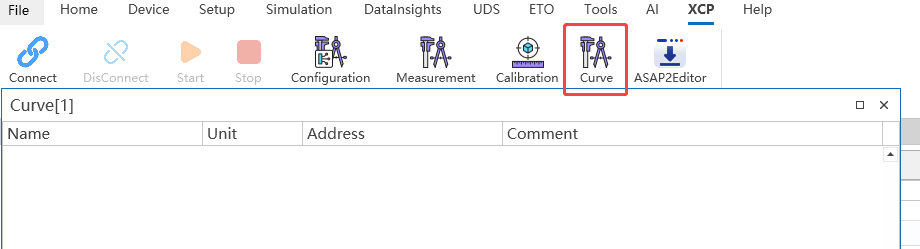
The data calibration effect is shown as follows.