Brief introduction
ASAP2 Editor is a tool for converting ELF (Executable and Linkable Format) files to A2L (ASAP2 Standard Format) files. It supports the extraction of observations and calibration quantities from ELF files by supporting multiple conversion methods (linear, rational, algebraic expressions, lookup tables, symbol lookup tables, etc.). The tool allows users to flexibly edit the conversion method for each object, with the option of independent or public conversion methods. Additionally, the tool supports the latest A2L v1.60 version output, providing users with more robust formula support and improved compatibility.
Main interface description
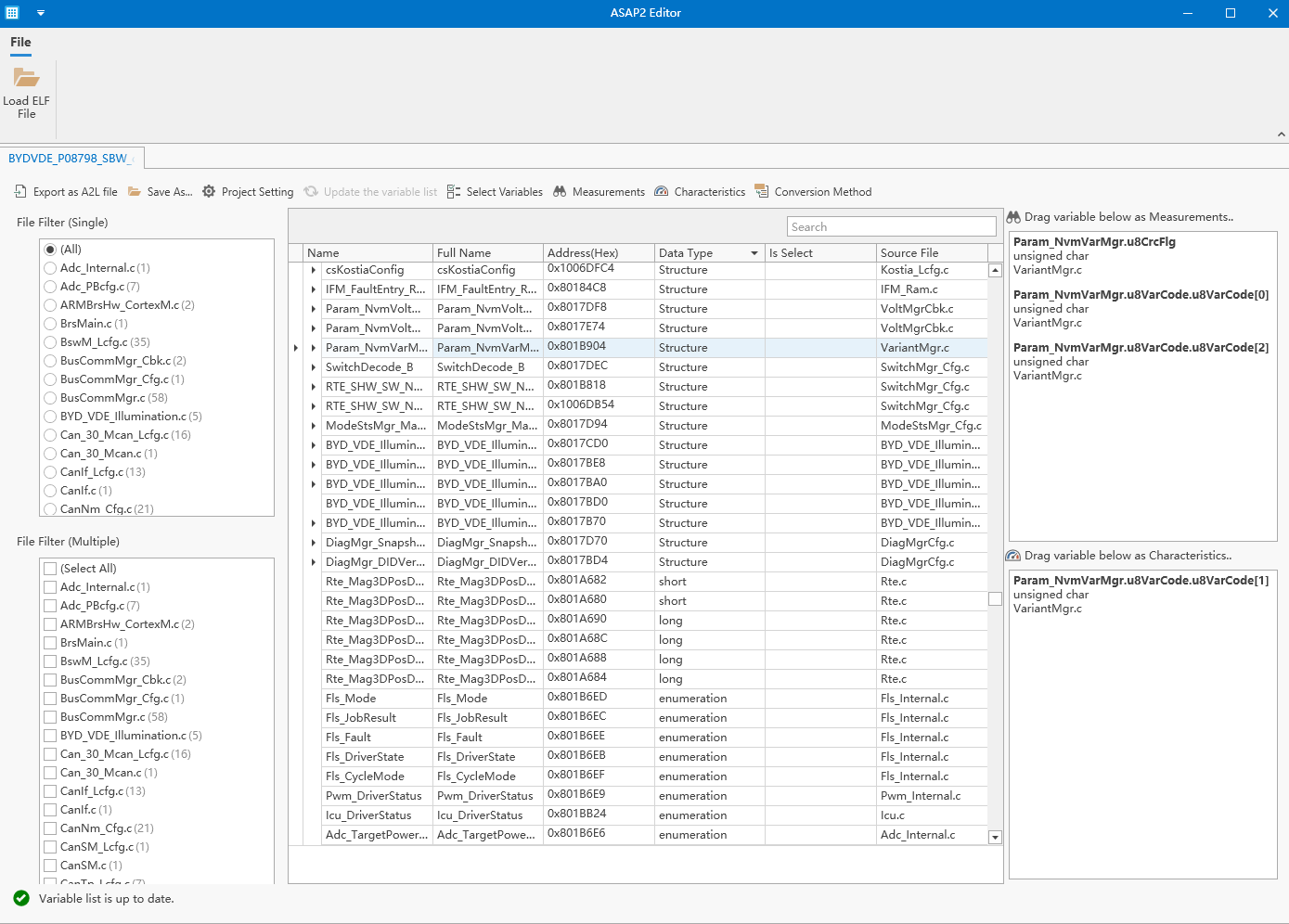
Get started quickly
Load an elf file
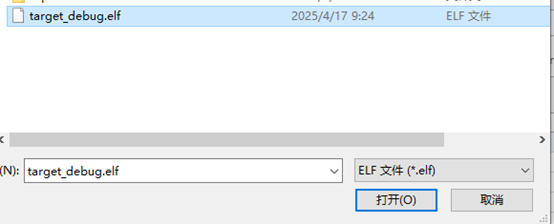
Step1 Click Load ELF File

Step2 Select and load an elf file
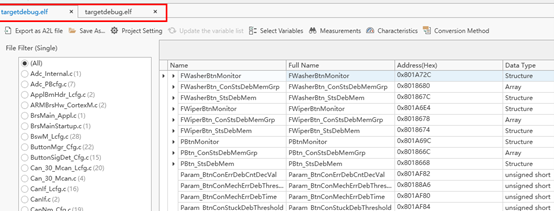
*Support opening multiple elf files at the same time.
Add an observation/calibration
Step 1 Select Select Variable in the toolbar
Step 2 Click the variable/struct/array you need to add, right-click the menu or drag to the right to add the variable to the observation/calibration list.
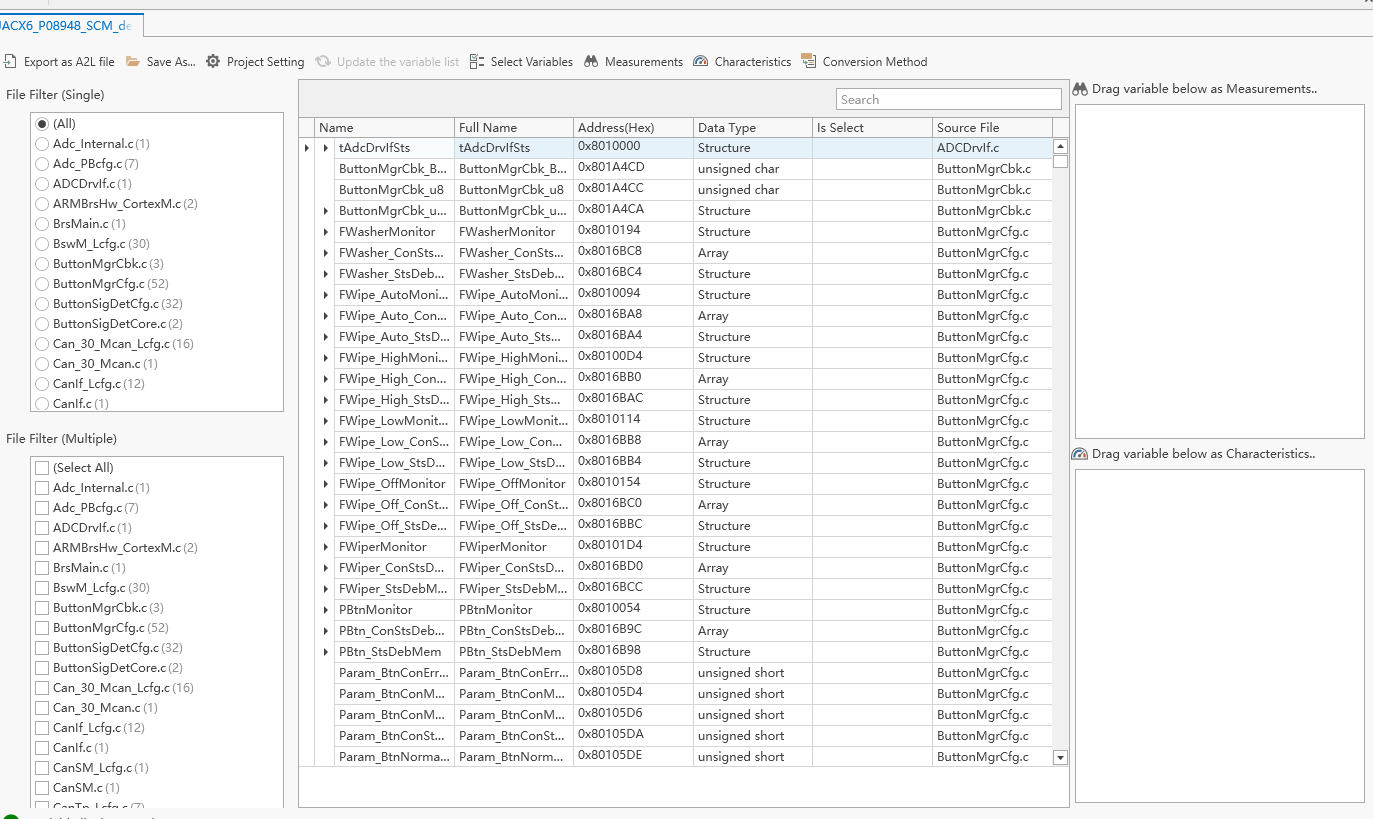
Edit the observation/calibration attributes and set the conversion formula
Step 1 Click Measurements/Characteristics in the toolbar to view the list of observations/calibrations that have been added.
Step 2 Double-click the observation/calibration quantity you want to edit to edit the properties.
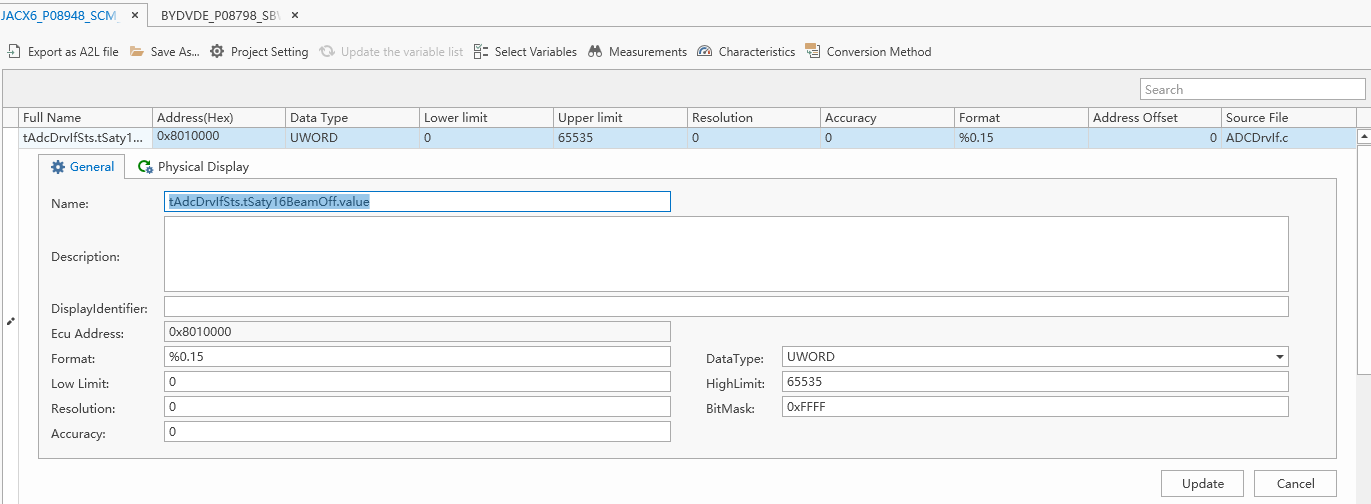
Step 3 Click Physical Display to specify a conversion formula for the variable.

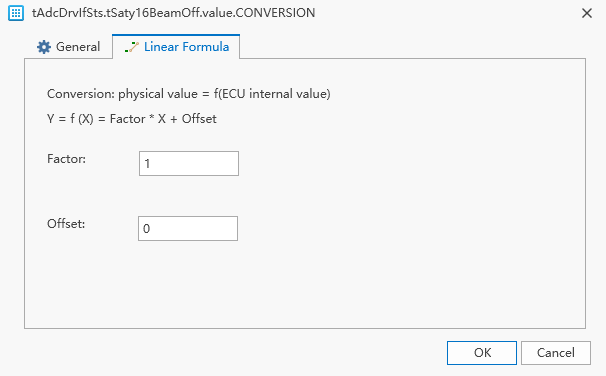
Linear Conversion:
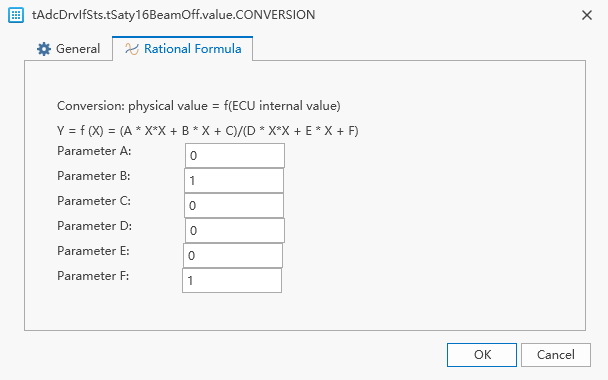
Rational Number Conversion:
Algebraic expression conversion:
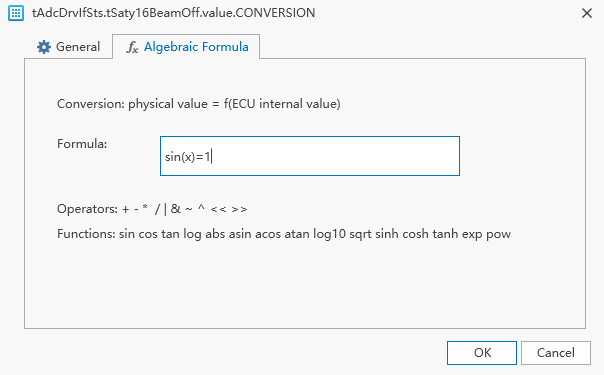
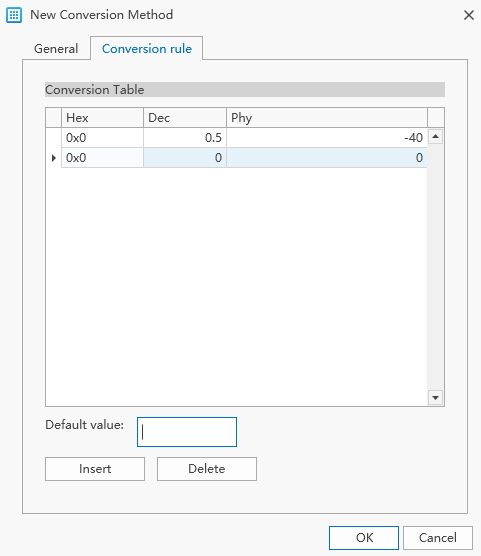
Find table transformations:
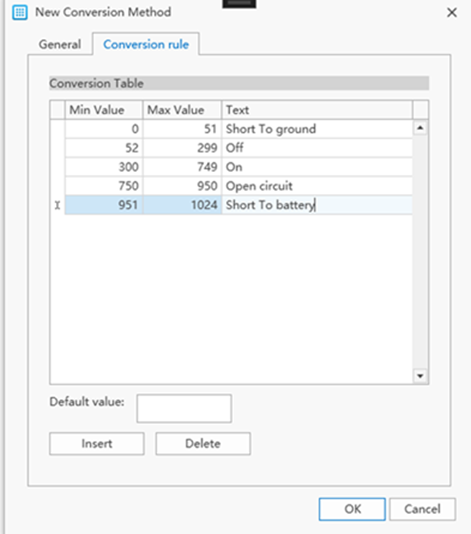
Symbol lookup table conversion:
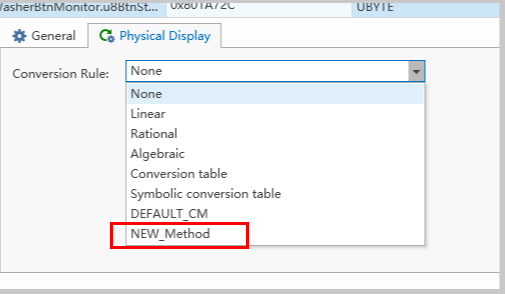
Create a new conversion formula
Step 1 Open "Conversion Method" in the toolbar
Step 2 Click "Add New Conversion Method.." Or right-click in the blank space to add a new generic formula.

Step 3 Specify a general formula for the variable.

Detect ELF file changes and update the assigned observation/calibration addresses with one click
When the currently open ELF file changes, it will be prompted below.
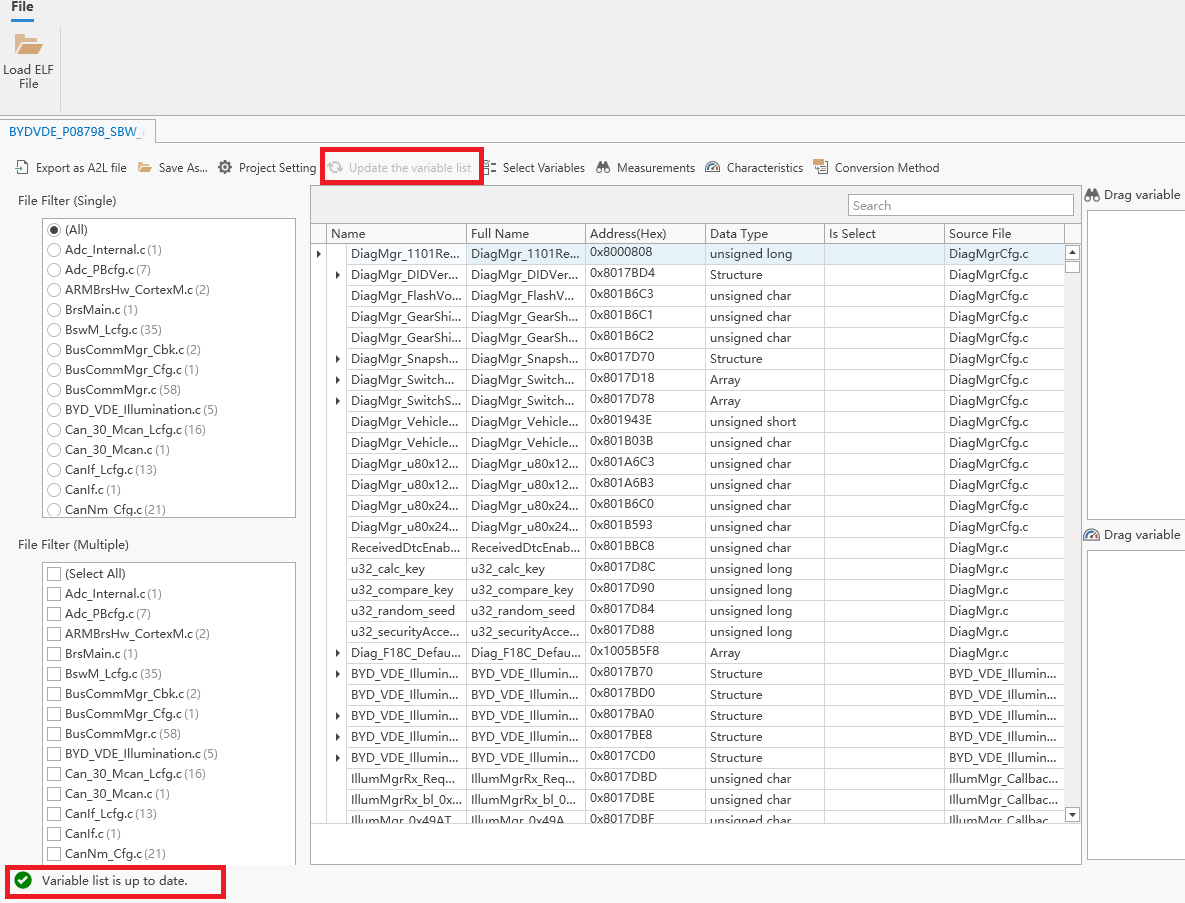
Click "Update Variable list" to synchronize the variable list.
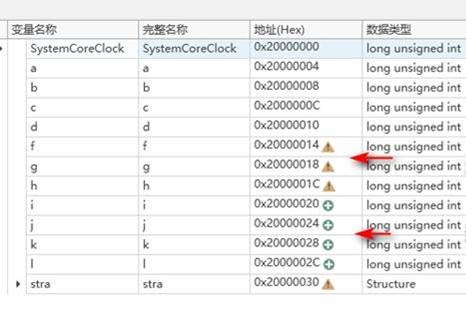
At the same time, the list of selected variables will not disappear, and it will indicate which variable addresses have changed and which have been deleted (deleted variables will not be generated).

Export the A2L file
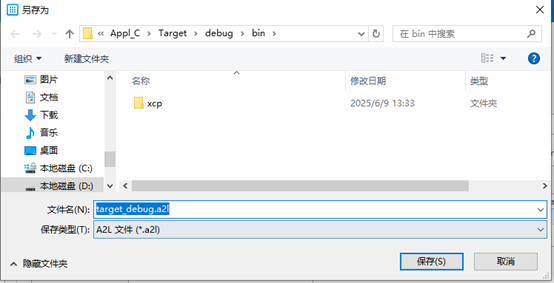
Step 1 Click Export as A2L file in the toolbar.
Step 2 Specify the path and export the A2L file.